Updated:
The Armbian vendor kernel version now includes Panthor, and will soon be able to run it as well.
Waydroid images:
https://github.com/WillzenZou/armbian_fork_build/releases/download/willzen-armbian-24.5.0/2.waydroid-panthorv10-240416-v1.img.tar.gz
Note: Waydroid needs to be run in the Wayland desktop environment. (Such as Gnome wayland, KDE wayland session)
What's work:
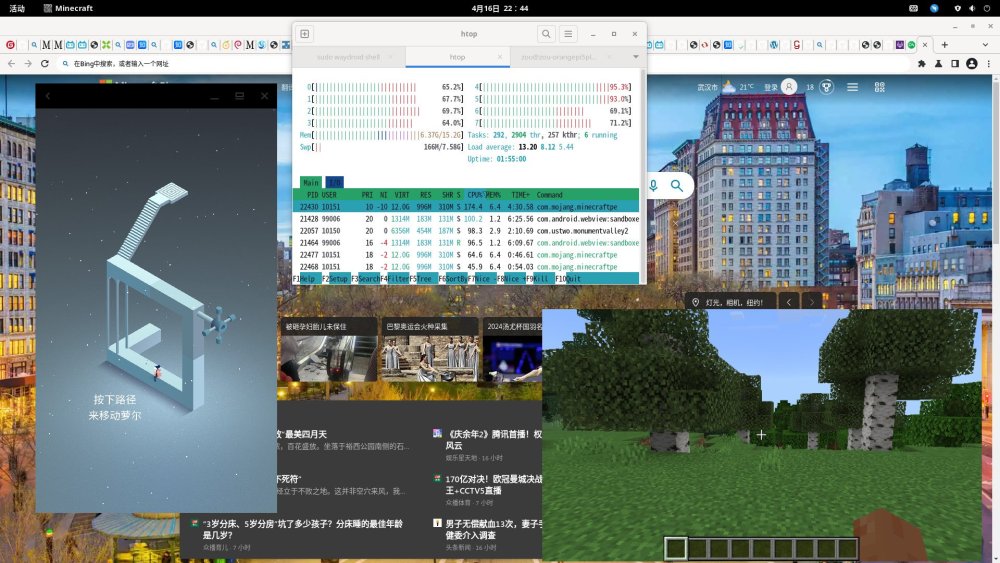
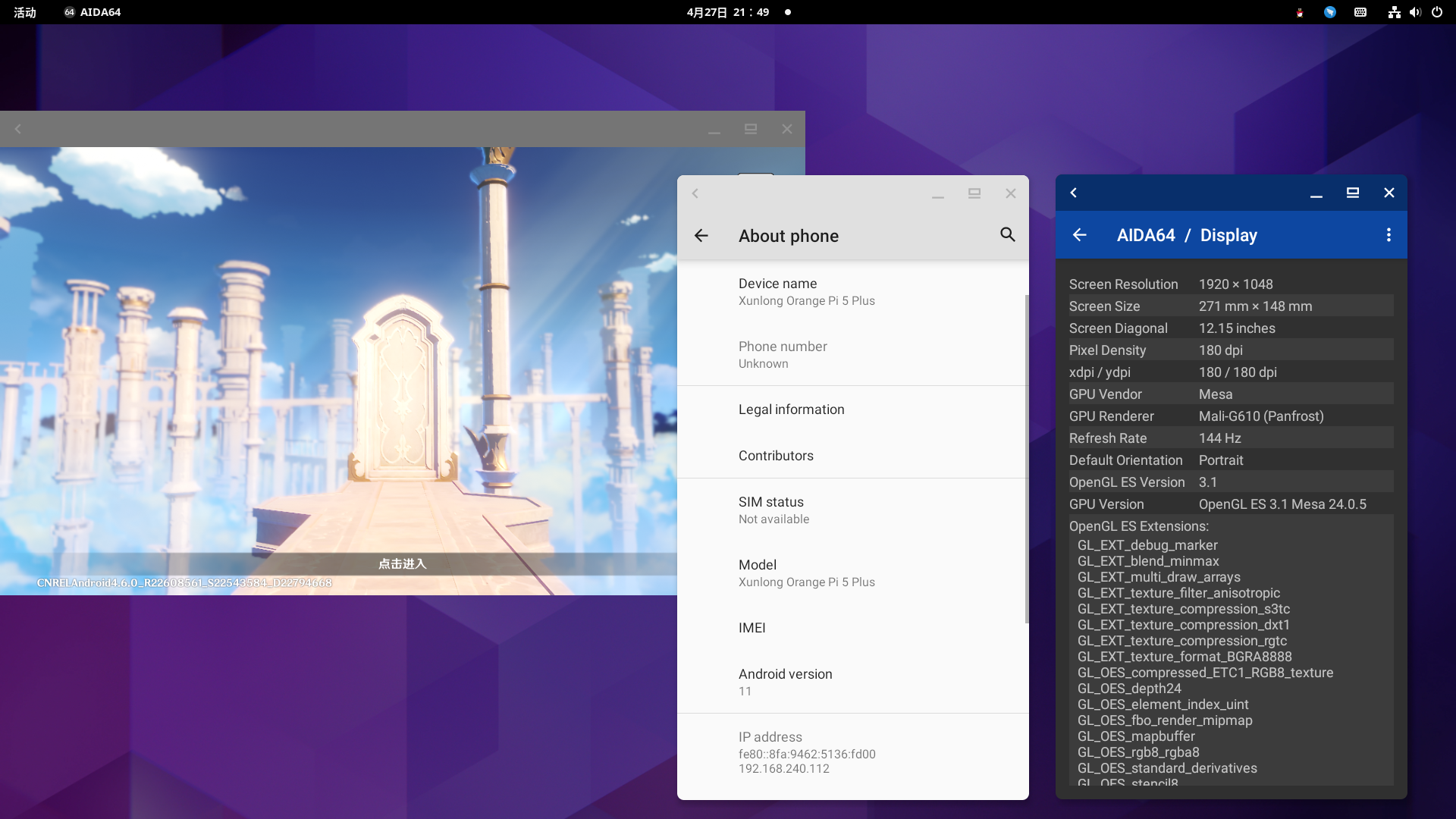
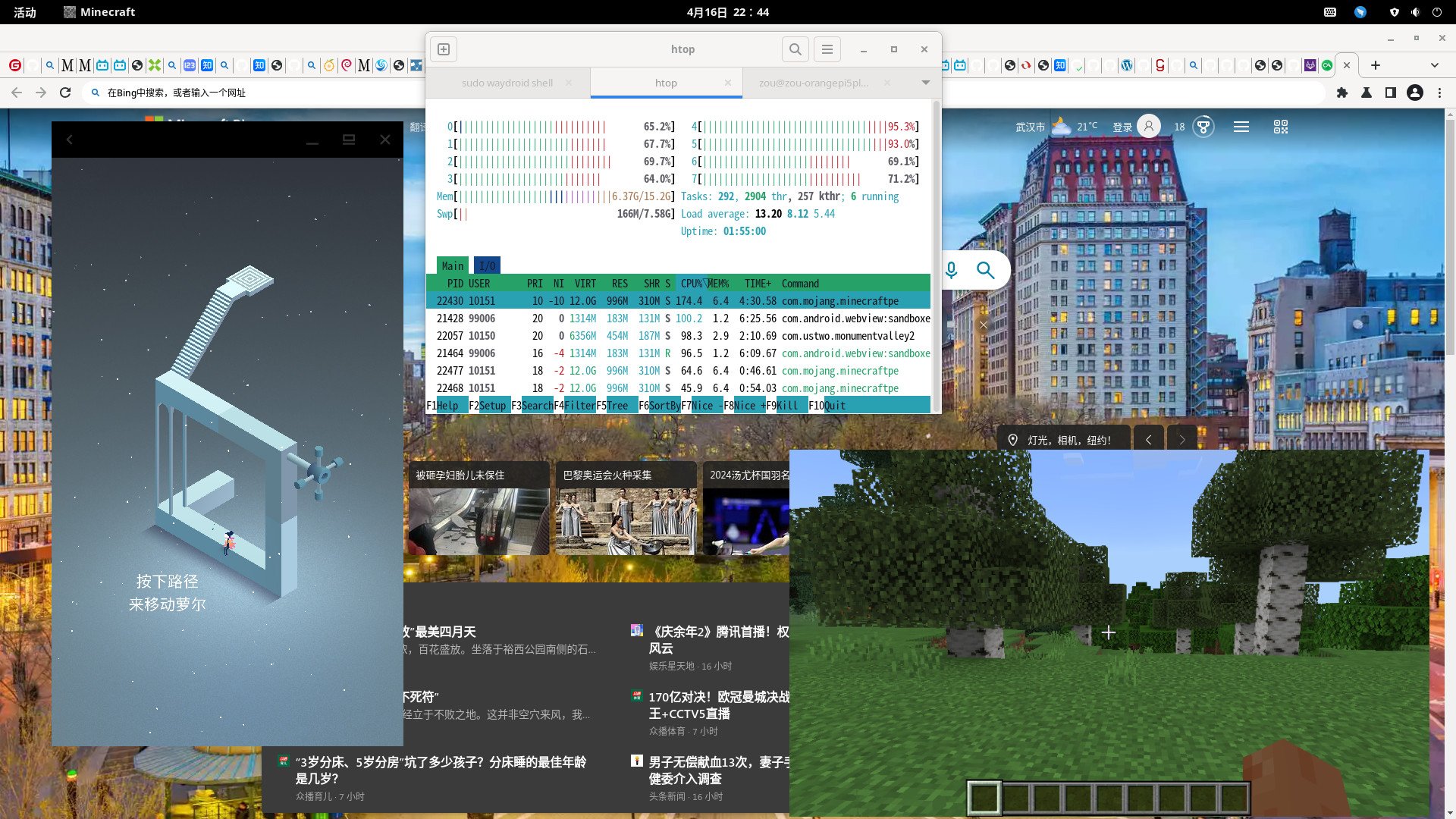
OpenGL ES is ok, I have tested some game: Mincecrat, gameSHINE, Monument Valley 2
What's not work:
Vulkan.
Video hardware decode and encode.
How to use Waydroid
1. To install Waydroid, refer to the tutorial : https://docs.waydro.id/faq/using-custom-waydroid-images https://docs.waydro.id/usage/waydroid-command-line-options
sudo apt install curl ca-certificates -y
curl https://repo.waydro.id | sudo bash
sudo apt install waydroid
2. Extract Waydroid system image waydroid-panthorv10-240416-v1.img.tar.gz to /usr/share/waydroid-extra/images and initialize it, there are system.img and vendor.img in it
sudo waydroid init -f -i /usr/share/waydroid-extra/images
3. Other more useful parameters that need to be operated after waydroid session start
Enable/disable multi-window:
waydroid prop set persist.waydroid.multi_windows true
waydroid prop set persist.waydroid.multi_windows false
Install and start the app (also visible in the app menu after installation):
waydroid app install com.app.apk
waydroid app launch com.app
List of apps:
waydroid app list
source code(needs morre work): https://github.com/WillzenZou/android_external_mesa3d