

bedna
-
Posts
105 -
Joined
-
Last visited
Content Type
Forums
Store
Crowdfunding
Applications
Events
Raffles
Community Map
Everything posted by bedna
-
Well, you DID ask for a way to run a script, not a gui desktop application. Glad you figured it out. Did you check what that option does? And you removed the invocation of bCNC so, not that strange.
-
Raspberry Pi4 apt-get update problems
bedna replied to Sid Boyce's topic in Software, Applications, Userspace
OPI PC2 here. I had a missing release error the other day and just assumed it was because it was no longer supported. That is no longer the case and I also get: Hit:1 http://deb.debian.org/debian bullseye InRelease Get:2 http://deb.debian.org/debian bullseye-updates InRelease [44.1 kB] Get:3 http://security.debian.org bullseye-security InRelease [48.4 kB] Get:4 http://deb.debian.org/debian bullseye-backports InRelease [49.0 kB] Err:6 http://apt.armbian.com bullseye InRelease 502 Bad Gateway [IP: 130.185.239.78 80] Get:5 https://cli.github.com/packages stable InRelease [3917 B] Hit:7 https://download.docker.com/linux/debian bullseye InRelease Get:8 http://security.debian.org bullseye-security/main arm64 Packages [342 kB] Get:9 https://cli.github.com/packages stable/main arm64 Packages [346 B] Fetched 488 kB in 3s (167 kB/s) Reading package lists... Done Building dependency tree... Done Reading state information... Done 2 packages can be upgraded. Run 'apt list --upgradable' to see them. W: Failed to fetch http://apt.armbian.com/dists/bullseye/InRelease 502 Bad Gateway [IP: 130.185.239.78 80] W: Some index files failed to download. They have been ignored, or old ones used instead. Nobody confirmed bullseye so I have to ask.. -
Really strange! Refuses to work here, keep getting host errors, but then works, but reports no other than one more seed. I guess it is something on my side. I'll just grab the file on the webpage and move on.
-
The minimal (Bookworm) torrent of Orange Pi PC2 was only shared by one source when I added it today, and that source is only at 71%. Not sure if this is another person also trying to download and the original source no longer shared, or if this is the original source and it is broken. I can ofc download the file via https, but felt I wanted to let you know.
-
I think it's the other way around (MBR vs GPT). Using grub f.ex, with GPT you can have the boot partition wherever you want, as long as you define it with UUID, but it USUALLY is the first partition. With MBR this is not a choice EVEN if you use uefi, I think you MUST have the partition first (and leave 5MiB or smthn before the partition).
-
Ah, then maybe it has something to do with my "skip redirect" plugin. You can never be too careful. OOOOOH, YOU HAVE HOODIES TOO! 💓
-
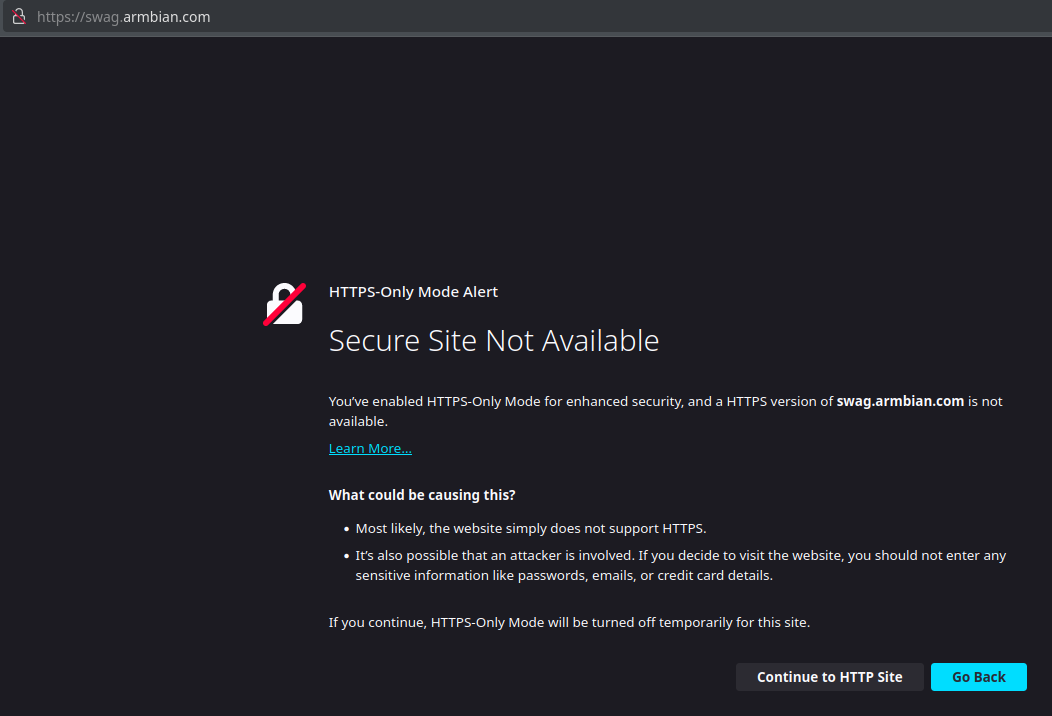
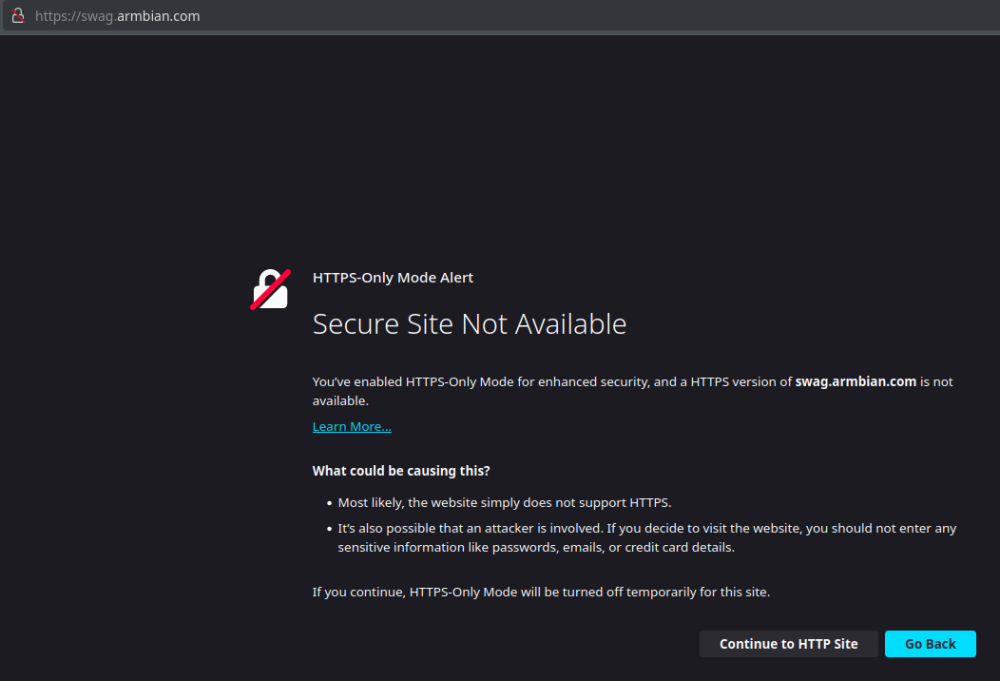
This does not look good... Did someone forget to renew the certificates?
-
Yes, you can obviously reinstall the boot completely instead of backing up what you have on your system. This is great info in the thread! I opted for a backup rather than a reinstall. Not only may, I have learned it is more of a rule than an exception. This an example with the opi5 img: Model: Loopback device (loopback) Disk /dev/loop0: 7315MB Sector size (logical/physical): 512B/512B Partition Table: gpt Disk Flags: Number Start End Size File system Name Flags 1 16,8MB 285MB 268MB fat16 bootfs bls_boot 2 285MB 7315MB 7030MB ext4 rootfs Witch is the reason I do a dd of the entire boot sector (including any existing boot partitions if they exist) in the initial backup, sup-sequential backups, I just mount both partitions (if there is a boot partition) on the img and backs up the entire file system.
-
nfs-server startup problem after boot
bedna replied to armdran's topic in Software, Applications, Userspace
I am running a nfs share on my rpi4 and got curious (I use ip addresses rather than host-names, so that could be an extra layer you have to make sure is loaded before it is trying to connect), because I just created the /etc/exports, exportfs -ra, reloaded the systemd daemon and enabled nfs-server.service. So I checked the service file itself. This is on raspberry pi os, not armbian. Mine contains way more dependencies than just network-online.target, maybe you can use this to figure it out: $ cat /lib/systemd/system/nfs-server.service [Unit] Description=NFS server and services DefaultDependencies=no Requires=network.target proc-fs-nfsd.mount Requires=nfs-mountd.service Wants=rpcbind.socket Wants=nfs-idmapd.service After=local-fs.target After=network.target proc-fs-nfsd.mount rpcbind.socket nfs-mountd.service After=nfs-idmapd.service rpc-statd.service Before=rpc-statd-notify.service # GSS services dependencies and ordering Wants=auth-rpcgss-module.service After=rpc-gssd.service gssproxy.service rpc-svcgssd.service # start/stop server before/after client Before=remote-fs-pre.target Wants=nfs-config.service After=nfs-config.service [Service] EnvironmentFile=-/run/sysconfig/nfs-utils Type=oneshot RemainAfterExit=yes ExecStartPre=/usr/sbin/exportfs -r ExecStart=/usr/sbin/rpc.nfsd $RPCNFSDARGS ExecStop=/usr/sbin/rpc.nfsd 0 ExecStopPost=/usr/sbin/exportfs -au ExecStopPost=/usr/sbin/exportfs -f ExecReload=/usr/sbin/exportfs -r [Install] WantedBy=multi-user.target -
shrink-backup - a tool for backing up sbc:s
bedna replied to bedna's topic in Software, Applications, Userspace
Version 0.9.5 released. Support added for OrangePi 5. (gpt partition table) Experimental support for btrfs. For more information, please see https://github.com/UnconnectedBedna/shrink-backup -
I was wrong about the rpi5 thing, they are still in mbr. Not really important, because it boots, but why is the sector before the boot partition so freakishly large (16,8MB)? Looped img of Armbian 23.11 Jammy-amazingfated GNOME for orangepi 5 $ parted /dev/loop0 print Model: Loopback device (loopback) Disk /dev/loop0: 7315MB Sector size (logical/physical): 512B/512B Partition Table: gpt Disk Flags: Number Start End Size File system Name Flags 1 16,8MB 285MB 268MB fat16 bootfs bls_boot 2 285MB 7315MB 7030MB ext4 rootfs
-
I got an issue from a user on a bash script I am sharing on github. The script is to make shrunk img backups on a running system on a lot of different sbc:s. After some testing on the users side (I did not have access to hardware to test) it turned out the script fails because of the partition table, it is GPT while in the past they have always been MBR (msdos). I downloaded the latest opi5 gnome desktop image and looped it and parted shows it is in GPT. We figured out a way to solve it but my question is: is this because rpi5 uses gpt partition table (I do not own a rpi5 either)? Will this be the future of most armbian builds? On a side note, `armbian-resize-filesystem.service` still works to autoexpand after I restore a backed up img, so thank you for providing this. ❤️
-
Updated to version 1.4. Please see Shrink-backup github for full information. Release notes: Autoexpansion added for rpiOS trixie Fixed detection and autoexpansion for DietPi Version included in logfile "Confirmation window" updates: Moved into a function Inclusion of device paths Countdown timer for `ctrl+c` if `-y` option is selected -------------------------------------------------------------------------------------------------------------------------------------------------------------------- shrink-backup is a bash script for backing up your SBC into a minimal img file with autoexpansion at boot for supported operating systems Version 1.4 Info updated: 16 Oct, 2025. Full information: shrink-backup I made this script because I wanted a universal method of backing up my SBC:s into img files as fast as possible (with rsync), no matter what os is in use. shrink-backup is a very fast utility for backing up your SBC:s into minimal bootable img files for easy restore with autoexpansion at boot. Can backup any device with or without a boot partition as long as the filesystem is ext4, f2fs or btrfs (with subvolumes). Supports backing up root & boot (if existing) partitions. Data from other partitions will be written to root if not excluded. For btrfs, all existing top level 5 subvolumes in /etc/fstab will be created with new backups, nested subvolumes will be created and can also be removed/added in an update of the backup img. Please read Info section for more information. Autoexpansion tested & supported on following operating systems: - Raspberry Pi OS (trixie and older) - Armbian - Manjaro-arm - DietPi - ArchLinux-arm - Kali-arm - Ubuntu-server-arm (Ubuntu autoexpands by default, but that can be disabled with -e option) Autoexpansion does not work on f2fs due to filesystem limitations. Other operating systems will most likely work too, but autoexpansion will not. The script will report the operating system as "unknown" but that does not mean the script will fail. Feel free to make a feature request if you use an operating system not on this list. Full functionality for usage inside webmin (including "custom command" button). Latest release: shrink-backup.v1.4 Testing branch if you want to have the absolute latest version. There might be bugs. Very fast restore thanks to minimal size of img file. Default device that will be backed up is determined by scanning what disk-device root resides on. This means that if boot is a partition, that partition must be on the same device and before the root partition. The script considers everything on the device before root as the bootsector. Backing up/restoring, to/from: usb-stick /dev/sdX with Raspberry pi os has been tested and works. Ie, writing an sd-card img to a usb-stick and vice versa works. Ultra-fast incremental backups to existing img files. See wiki for information about installation methods, usage and examples. Ideas and feedback is always appreciated, whether it's positive or negative. Please just keep it civil. If you find a bug or think something is missing in the script, please file a bug report or feature request To restore a backup, simply "burn" the img file to a device using your favorite method. When booting a restored image with autoresize active, on some operating systems a reboot will occur after resizing is made (you will be informed at the end of the script if your operating system is affected by this), please wait until the the reboot sequence has occurred. The login prompt may very well become visible before the autoresize function has rebooted. -------------------------------------------------------------------------------------------------------------------------------------------------------------------- Usage: shrink-backup -h Script for creating an .img file and subsequently keeing it updated (-U), autoexpansion is enabled by default Directory where .img file is created is automatically excluded in backup ######################################################################## Usage: sudo shrink-backup [-Uatyelhz] [--fix] [--loop] [--f2fs] imagefile.img [extra space (MiB)] ------------------------------------------------------------------------------------------------------------------------------------------------ -U Update existing img file (rsync to existing img) Optional [extra space] extends img size of root partition -a Autoresize root partition, [extra space] is ignored. When used in combination with -U: Expand if partition is >=256MiB smaller than resize2fs recommended minimum Shrink if partition is >=512MiB bigger than resize2fs recommended minimum -t Use exclude.txt in same folder as script to set excluded directories One directory per line: "/dir" or "/dir/*" to only exclude contents -y Disable prompts in script (please use this option with care!) -e Disable autoexpansion of root filesystem when image is booted -l Write debug messages to logfile shrink-backup.log located in same directory as script -z Make script zoom at light-speed, only question prompts might slow it down Can be combined with -y for UNSAFE ultra mega superduper speed -q --quiet Do not print rsync copy process --no-color Run script without color formatted text --fix Try to fix the img file if -a fails with a "broken pipe" error Will activate rsync options --delete-before & --fsync --rsync Define custom rsync line manually. Will print rsync line for user to edit --loop [img] Loop img file and exit, works in combination with -l & -z If optional [extra space] is defined, the img file will be extended with the amount before looping NOTE that only the file gets truncated, no partitions Useful if you for example want to manually manage the partitions --chroot [img] Use systemd-nspawn. Loop img file, mount to temp directory, enter chroot environment and drop to shell This will let you make changes in a chroot environment directly on the img file For example update with package manager or rebuild initramfs The script will keep running in the background --f2fs Convert root filesystem on img from ext4 to f2fs Only works on new img file, not in combination with -U Will make backups of fstab & cmdline.txt to: fstab.shrink-backup.bak & cmdline.txt.shrink-backup.bak Then change ext4 to f2fs in both files and add discard to options on root partition in fstab --version Print version and exit -h --help Show this help snippet ######################################################################## Examples: sudo shrink-backup -a /path/to/backup.img (create img, resize2fs calcualtes size) sudo shrink-backup -e -y /path/to/backup.img 1024 (create img, ignore prompts, do not autoexpand, add 1024MiB extra space) sudo shrink-backup -Utl /path/to/backup.img (update img backup, use exclude.txt and write log to shrink-backup.log) sudo shrink-backup -U /path/to/backup.img 1024 (update img backup, expand img size/root partition with 1024MiB) sudo shrink-backup -Ua /path/to/backup.img (update img backup, resize2fs calculates and resizes img file if needed) sudo shrink-backup -Ua --fix /path/to/backup.img 1024 (update img backup, automatically resizes img file if needed, fix img free space) sudo shrink-backup -l --loop /path/to/backup.img 1024 (write to log file, expand IMG FILE (not partition) by 1024MiB and loop) Thank you for using shrink-backup ❤️❤️ A backup is not really a backup until you have restored from it.