
Active threads
Showing topics posted in for the last 365 days.
- Today
-
Good news: this is merged in Armbian main now, many thanks to @c0rnelius and @Igor for reviewing this. So no more need to grab my fork, just clone Armbian/build:main. I was able to build and quick-test orangepirv2/edge-kernel and this looks fine including Wifi. There are of course unsolved quirks currently. With edge-kernel, Wayland does not work, we need to use Xorg. And with the current bcmdhd Wifi driver, AP mode is not possible. This is caused by outdated file in armbian-firmware for bcmdhd and may be the same on OrangePi5. There is a mechanism to load a different fw_bcm43456c5_ag.bin (the one downloadable from github/xunlong seems to work). LG // Sven-Ola
-
 is there a guide for booting opi5 from nvme that works with Armbian 26.2.1 -noble or trixie? The standard way via armbian-install seems broken
 -
 I just tried LibreELEC 13 testing builds as they are also running kernel 6.18. Audio seems to work there and I can hear all channels or speakers. I guess LibreELEC includes HDMI audio support patches for RK3588/S and NanoPi R6S that Armbian hasn’t incorporated yet ? The ALSA rockchip-i2s-tdm driver needs to support more than 8 TDM slots or support the HDMI multi-TDM mapping for 5.1 / 7.1. LibreELEC patches
 -
 As it turned out, Orange Pi does not support Power Delivery Negotiations and requires a "dumb" power supply providing 5V 4A. My power supply delivered 2A and then went into protection mode; the board itself had nothing to do with it
 -
Make sure you have ili9486.ko in your ko module folder: modinfo ili9486 Can you use the DTS that I published in: https://forum.armbian.com/topic/47971-driving-the-ili9488-lcd-40-inch-cheap-chinese-clone/#findComment-208446 But change the "compatible" line with waveshare,rpi-lcd-35 , Delete the stuff under the "compatible" line, until the "}vsync-len = <0>;", and replace it with what you had in your DTS. Change these lines, if they are different: spi-max-frequency = <24000000>; rotate = <270>; bgr; fps = <30>; buswidth = <8>; regwidth = <16>; Reference: https://github.com/raspberrypi/linux/blob/rpi-6.12.y/arch/arm/boot/dts/overlays/piscreen-overlay.dts
-

Gaming experience with Orange Pi 5 (RK3588) on Armbian
KhanhDTP replied to KhanhDTP's topic in Orange Pi 5
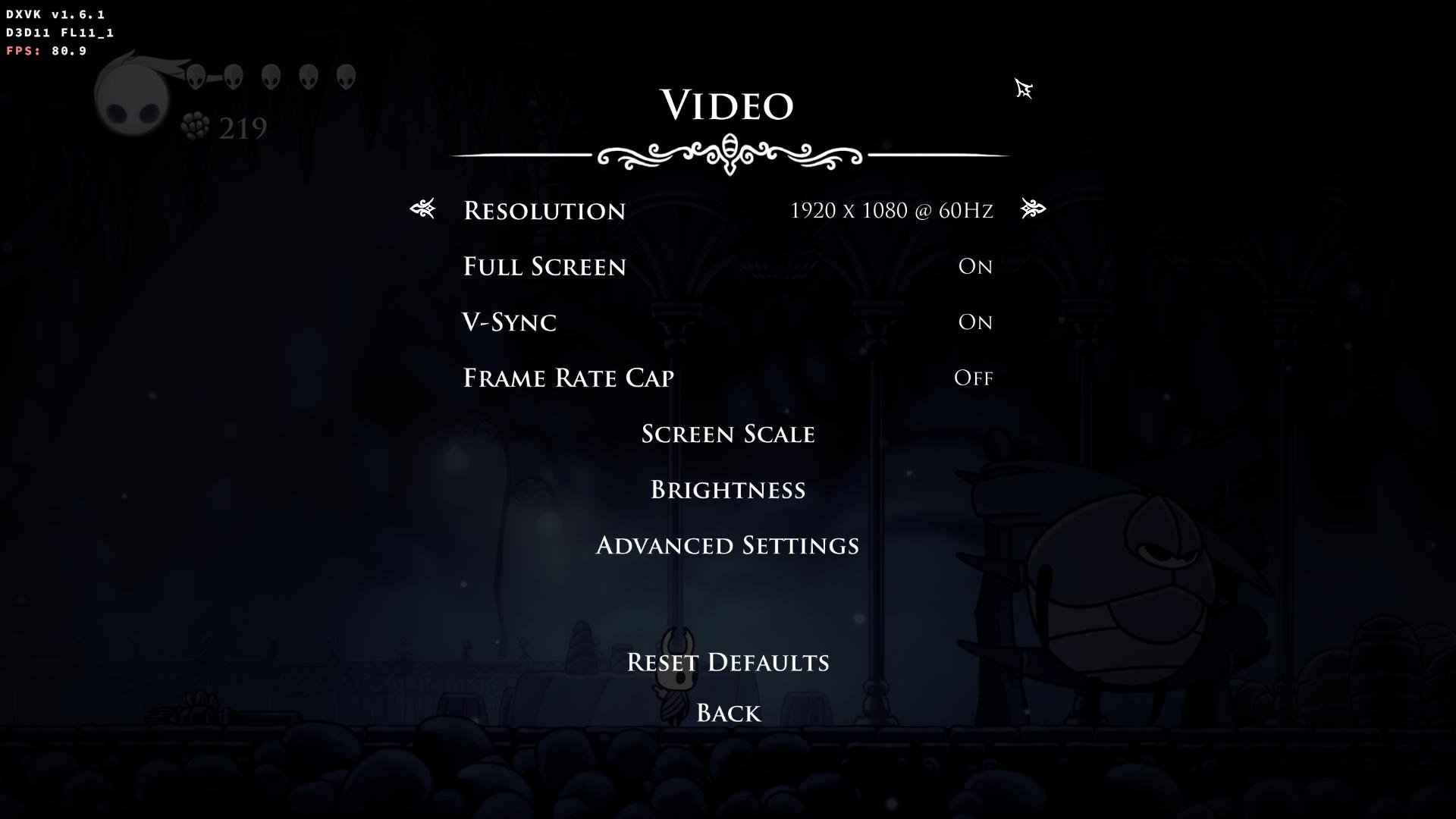
Armbian 25.11.2 Noble XFCE (BSP Kernel: 6.1.115) + PanVk - mesa 26.0 (https://launchpad.net/~ernstp/+archive/ubuntu/mesaaco) + Box64 arm64 v0.4.1 ed9827920 (https://ryanfortner.github.io/box64-debs/) + proton-10.0-4-amd64-wow64 (https://github.com/Kron4ek/Wine-Builds/releases/download/proton-10.0-4/wine-proton-10.0-4-amd64-wow64.tar.xz) + DXVK-stripped v1.6.1 >=60fps@1080p (medium/high settings) box64 environment variables: Hollow Knight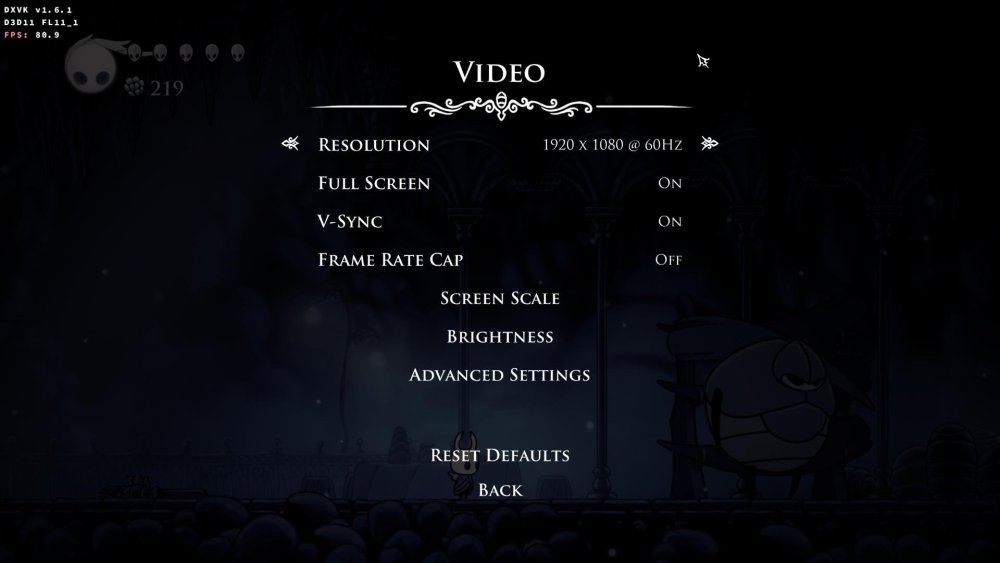
.thumb.jpg.ec671d62d8d5d9be0ed53bcf33bc5b3a.jpg)
-

Help in installing Armbian On an andoid tv box with amologic chip
SteeMan replied to KOUSA's topic in Amlogic CPU Boxes
You are not using Armbian. Ophub is a fork of Armbian. They do not contribute to Armbian development nor do they participate in these forums. You need to go to ophub to ask this question, as no one here can help you. -

Starting kernel... after power losses Nanopi Neo Air
eselarm replied to whiteblaine's topic in Allwinner sunxi
What is in armbianEnv.txt then? Anyway you need to load and edit it such that you make sure loglevel=7 Then there will be more text after Starting kernel ... You also seem to have a power and/or reliability problem w.r.t. cables as characters are missing in your debug log text. -
High chance this uses some proprietary hardware for 3.5mm audio jack. It has been like that for decades and you probably need to find some firmware blob somewhere maybe. I have also a similar situation, most part s of the computer work fine with Debian Trixie etc, but it took ages to get sound working and still buggy, endless beep or crash occasionally. If you are lucky is it maybe only a mute setting or so, use aumix etc to look what is going on. Not something Armbian specific I guess, but up to you to figure out. Then also mention various versions, what BIOS/UEFI version the computer is loaded with, what Armbian kernel and also specific image release (if it is an unmodified image writer based installation).
-
Hi, is it still working now?
-
@sicxnull This might be the patch that fixed it. It's in mainline u-boot now. I would use a newer u-boot. https://lists.denx.de/pipermail/u-boot/2025-March/582900.html
- Yesterday
-

to get 32768 clk from GPIO1 D4 on RK3328
robertoj replied to emresensoy's topic in Advanced users - Development
Linux is not a real time operating system Realtime OSes have a 1 ms accuracy You need an arduino dedicated only to make your square wave -
Amlogic s905x (s912) Print Server is Not Working
SteeMan replied to Aufa Aji's topic in Software, Applications, Userspace
Moved to userspace forum -
Just use dd (on linux) or balea etcher (windows/mac) to write the armbian image to an sdcard.
-
 Weston 15.0 has arrived, bringing a brand new Lua-based shell for fully customizable window management, an experimental Vulkan renderer, and a host of improvements to color handling, media playback, and display performance. View the full article
 -
@MeJune You can check out my work starting with the 'Add warpme kernel 6.17' commit here: https://github.com/NickAlilovic/build/commits/v20251014/ I’m using warpme patches from his minimyth2 repo, though I’ve modified them to ensure they apply correctly. I also used my own patches for Transpeed, as his implementation differs from mine. u-boot: https://github.com/warpme/minimyth2/tree/master/script/bootloaders/u-boot-aw/files https://github.com/warpme/minimyth2/blob/master/script/bootloaders/u-boot-aw/Makefile kernel: https://github.com/warpme/minimyth2/tree/master/script/kernel/linux-6.19/files https://github.com/warpme/minimyth2/blob/master/script/kernel/linux-6.19/Makefile An easier way to do this is to create a board config and use the official Armbian patch set. While Transpeed is already mainlined, the implementation is incomplete. You will still need a patch to include your missing Transpeed DTS nodes. If you are happy with 6.17, then use this build: https://github.com/NickAlilovic/build/commits/v20251014/ This build generates a kernel .deb package in output/debs. You can use it to upgrade your existing Armbian installation. I haven't tried this myself, so I make no promises that it will work; please ensure you have a backup before proceeding. Backing Up the SD Card (from another PC) The most reliable way to back up an SD card is to create a full disk image on a separate computer. sudo dd if=/dev/sdX of=armbian_backup.img bs=1M status=progress If your system is running on eMMC, you can back it up to an external USB or SD card using built-in Armbian tools. Using armbian-ddbr: Many Armbian builds include this utility specifically for eMMC backup/restore. Boot Armbian from an external SD card (so the eMMC is not in use). Run the command: sudo armbian-ddbr. Select the backup option to create a compressed image of your internal storage. Using armbian-config: Some versions offer a "Backup" or "Clone" option under the System or Maintenance menus
-
i recently purchased an orange pi 5 plus 16gb with the wifi / bt card, the aluminum wifi case, fan and 1tb ssd. when i go to the official website i see different images there none of which seem to work 100%. i mean i was able to get each up and running but what i noticed is that the graphical drivers would not load. i saw a youtube video claiming armbian has the right driver support for the mali 610 gpu. can someone assist me getting this to work? im big into emulation gaming and right now it doesnt even have Vulkan support i crave. someone help thanks
-
 Boot with serial attached and see if the DRAM is being properly detected. If not this patch would appear to solve the issue. https://lore.kernel.org/linux-sunxi/2813637.mvXUDI8C0e@jernej-laptop/T/#t
 - Last week
-
Hi Gaetano, I'd be suprised if Buster did work with such a newer kernel. dwc2 is Pi specific and will not work on Allwinner/Sunxi hardware. The OTG usb controller is completely different, please see the wiki: https://linux-sunxi.org/USB_OTG_Controller_Register_Guide Overlays will only load overlays found in /boot/dtb/overlay/ while user defined ones exist in /boot/overlay-user/ As expected otg is the default mode, firstly those warnings are normal when decompiling the dtb back dts as not everything gets translated back. For small modifications you can use sudo armbian-add-overlay which compiles the overlay and places it within /boot/overlay-user This problem seems to occur every now and again in some kernel releases, please refer to here: for a solution. I would refer back to the board schematic before adjusting the dts. On the Pcduino2 and Pcduino3, the OTG micro USB passes through a small resistor rather than a fuse so causes a slight voltage drop. Just make sure that you have a good quality lead that ensures the board gets 5V but slightly over is better. sudo armbianmonitor -m Stop monitoring using [ctrl]-[c] Time CPU load %cpu %sys %usr %nice %io %irq Tcpu PMIC DC-IN C.St. 22:19:42 960 MHz 0.39 14% 9% 5% 0% 0% 0% 33.7 °C 30.2 °C 5.34V 0/6^C Best of luck Ryzer
-
I see there is a "UART" on the front board image, but I guess it does not work for you. Check the sorroundings for possibile missing resistors, sometimes they remove some small SMD resistors to make the UART non-functional. Also note that you must use an adapter that is capable of 1.5Mbps; not all of them can reach such baud rates (AFAIR pl2303 can't, but CH301 should work)
-
Collabora is excited to see Monado at the heart of the new OpenXR runtime for Android XR, a major milestone for Open Source XR interoperability. View the full article
-
Collabora is excited to see Monado at the heart of the new OpenXR runtime for Android XR, a major milestone for Open Source XR interoperability. View the full article
-
 Disclaimer: I know it's not a good idea XD Is it possible somehow to upgrade the prebuilt image Armbian 12/OpenMediaVault 7 to Armbian 13/OpenMediaVault 8? Is there a guide?
 -
Concerns before trying to boot Armbian from SD card on GS King-X
SteeMan replied to marfalk's topic in Amlogic CPU Boxes
As long as you don't install Armbian to your emmc, you should be able to still boot android by removing the SD and/or usb drives. Once you install to emmc you will overwrite the android installation -

[Latest] Armbian Build HDMI Audio support Fix
rsbuffalo replied to just_facking_about's topic in Radxa Dragon Q6A
To get audio working on the Radxa Dragon (QCS6490) when the standard UCM (Use Case Manager) fails, you have to bypass the "official" path and manually bridge the hardware to the software. Here is the complete summary of the "manual bridge" method developed. I installed Armbian 25.11.1 Edge Image and below is how I fixed HDMI Audio. Step 1: Create the Hardware Bridge Script This script manually flips the hardware switches in the Qualcomm DSP that route audio to the HDMI/DisplayPort pins. File: /usr/local/bin/fix-hdmi-audio.sh Command: sudo nano /usr/local/bin/fix-hdmi-audio.sh Bash #!/bin/bash # Wait for hardware to initialize sleep 2 # Open the HDMI/DP Audio Bridge amixer -c 0 cset name='DISPLAY_PORT_RX_0 Audio Mixer MultiMedia1' 1 # Set initial hardware volume amixer -c 0 cset name='stream0.vol_ctrl0 MultiMedia1 Playback Volu' 75% Make it executable: sudo chmod +x /usr/local/bin/fix-hdmi-audio.sh Step 2: Create the Systemd Service This ensures the hardware switches are flipped automatically every time the board boots up. File: /etc/systemd/system/hdmi-audio.service Command: sudo nano /etc/systemd/system/hdmi-audio.service Ini, TOML [Unit] Description=Fix HDMI Audio Routing After=sound.target [Service] Type=oneshot ExecStart=/usr/local/bin/fix-hdmi-audio.sh RemainAfterExit=yes [Install] WantedBy=multi-user.target Enable it: Bash sudo systemctl daemon-reload sudo systemctl enable hdmi-audio.service Step 3: Configure the Desktop Audio Sink Since the system's "Built-in Audio" often defaults to a "Dummy Output" when UCM is broken, we force PulseAudio to create a manual "Sink" pointing directly to the hardware. File: /etc/pulse/default.pa Command: sudo nano /etc/pulse/default.pa Add these lines to the very bottom of the file: Plaintext # Manually bridge PulseAudio to the working hardware path load-module module-alsa-sink device=plughw:0,0 sink_name=Manual_HDMI sink_properties=device.description=HDMI_Audio_Output set-default-sink Manual_HDMI Step 4: Clean Up UCM (Optional but Recommended) To stop the "HDMI Audio failure" warnings during boot, you can ensure your UCM files are at least syntactically correct, even if the system ignores them. File: /usr/share/alsa/ucm2/QCS6490RadxaDra/HiFi.conf Plaintext Syntax 2 SectionDevice."HDMI" { Comment "HDMI Output" Value { PlaybackPriority 200 PlaybackPCM "hw:0,0" } } SectionVerb { EnableSequence [] DisableSequence [] } Summary of the Audio Path By following these steps, you have constructed the following data flow: Hardware: Qualcomm DSP (Card 0, Device 0). Bridge: amixer opens the path from the CPU to the HDMI port. ALSA: Provides the plughw:0,0 interface. PulseAudio: Grabs that interface and names it "HDMI_Audio_Output." Applications: YouTube/Browsers send audio to the "Default Sink," which is now your working HDMI path. Now I will put all these commands into a single "one-click" shell script so you can save it as a backup for future installs? The Radxa Dragon Audio "One-Click" Fix Create the file: nano fix_audio.sh Paste the code below. Run it: chmod +x fix_audio.sh && sudo ./fix_audio.sh Bash #!/bin/bash echo "🚀 Starting Radxa Dragon QCS6490 Audio Fix..." # 1. Create the Hardware Bridge Script echo "🔧 Creating hardware bridge script..." cat <<EOF | sudo tee /usr/local/bin/fix-hdmi-audio.sh > /dev/null #!/bin/bash # Wait for hardware to initialize sleep 2 # Open the HDMI/DP Audio Bridge amixer -c 0 cset name='DISPLAY_PORT_RX_0 Audio Mixer MultiMedia1' 1 # Set initial hardware volume amixer -c 0 cset name='stream0.vol_ctrl0 MultiMedia1 Playback Volu' 75% EOF sudo chmod +x /usr/local/bin/fix-hdmi-audio.sh # 2. Create the Systemd Service echo "⚙️ Creating boot-time service..." cat <<EOF | sudo tee /etc/systemd/system/hdmi-audio.service > /dev/null [Unit] Description=Fix HDMI Audio Routing After=sound.target [Service] Type=oneshot ExecStart=/usr/local/bin/fix-hdmi-audio.sh RemainAfterExit=yes [Install] WantedBy=multi-user.target EOF # 3. Enable and Start the Service sudo systemctl daemon-reload sudo systemctl enable hdmi-audio.service sudo systemctl start hdmi-audio.service # 4. Configure PulseAudio Sink echo "🔉 Configuring PulseAudio/PipeWire sink..." PA_CONFIG="/etc/pulse/default.pa" if [ -f "$PA_CONFIG" ]; then # Check if we already added the fix to avoid duplicates if ! grep -q "Manual_HDMI" "$PA_CONFIG"; then cat <<EOF | sudo tee -a "$PA_CONFIG" > /dev/null # Manually bridge PulseAudio to the working hardware path load-module module-alsa-sink device=plughw:0,0 sink_name=Manual_HDMI sink_properties=device.description=HDMI_Audio_Output set-default-sink Manual_HDMI EOF fi else echo "⚠️ Warning: /etc/pulse/default.pa not found. You may need to manualy add the sink to your specific sound server config." fi echo "✅ Success! Please reboot to finalize settings." echo " After reboot, select 'HDMI_Audio_Output' in Sound Settings if it doesn't auto-switch." Why this works for your specific board: This script performs a "Direct Injection." Instead of asking the operating system to figure out where the audio goes (which fails because the Qualcomm UCM profiles are currently buggy), it tells the hardware exactly which gate to open and tells the software exactly which "sink" to pour the audio into.

.jpg.be6533a41e18728de9755cadb15784c2.jpg)