
All Activity
- Past hour
-
Minix Neo U1 Armbian_community_26.2.0-trunk.606_Aml-s9xx-box_trixie_current_6.18.18_minimal.img win32diskimager to sandisk 16gb sdcard extlinux.conf -> fdt /dtb/amlogic/meson-gxbb-wetek-play2.dtb =NOBOOT!!! Ok, but since many weeks i own a Wetek Play 2 and the internal WeOS was never touched in any way. So it must work ... or ??? Lets see: Wetek Play 2 Armbian_community_26.2.0-trunk.606_Aml-s9xx-box_trixie_current_6.18.18_minimal.img win32diskimager to sandisk 16gb sdcard extlinux.conf -> fdt /dtb/amlogic/meson-gxbb-wetek-play2.dtb =OF COURSE !!! ... ... HYPERTENSION ... ... NOFUCKINGBOOT!!! armbian s9xxx makers: please explain!
- Today
-
same thing with edge kernel: https://paste.armbian.com/orivozogil
-
 OK thanks @bedna With your help I've made some progress. I followed one of your links to the wiki regarding a standalone server and modified the smb.conf file as below # # Sample configuration file for the Samba suite for Debian GNU/Linux. # # # This is the main Samba configuration file. You should read the # smb.conf(5) manual page in order to understand the options listed # here. Samba has a huge number of configurable options most of which # are not shown in this example # # Some options that are often worth tuning have been included as # commented-out examples in this file. # - When such options are commented with ";", the proposed setting # differs from the default Samba behaviour # - When commented with "#", the proposed setting is the default # behaviour of Samba but the option is considered important # enough to be mentioned here # # NOTE: Whenever you modify this file you should run the command # "testparm" to check that you have not made any basic syntactic # errors. #======================= Global Settings ======================= [global] map to guest = Bad User log file = /var/log/samba/%m log level = 1 server role = standalone server [guest] # This share allows anonymous (guest) access # without authentication path = /srv/samba/guest/ read only = no guest ok = yes guest only = yes ## Browsing/Identification ### # Change this to the workgroup/NT-domain name your Samba server will part of workgroup = WORKGROUP # server string is the equivalent of the NT Description field server string = %h server (Samba, Ubuntu) #### Networking #### # The specific set of interfaces / networks to bind to # This can be either the interface name or an IP address/netmask; # interface names are normally preferred ; interfaces = 127.0.0.0/8 eth0 # Only bind to the named interfaces and/or networks; you must use the # 'interfaces' option above to use this. # It is recommended that you enable this feature if your Samba machine is # not protected by a firewall or is a firewall itself. However, this # option cannot handle dynamic or non-broadcast interfaces correctly. ; bind interfaces only = yes #### Debugging/Accounting #### # This tells Samba to use a separate log file for each machine # that connects log file = /var/log/samba/log.%m # Cap the size of the individual log files (in KiB). max log size = 1000 # We want Samba to only log to /var/log/samba/log.{smbd,nmbd}. # Append syslog@1 if you want important messages to be sent to syslog too. logging = file # Do something sensible when Samba crashes: mail the admin a backtrace panic action = /usr/share/samba/panic-action %d ####### Authentication ####### # Server role. Defines in which mode Samba will operate. Possible # values are "standalone server", "member server", "classic primary # domain controller", "classic backup domain controller", "active # directory domain controller". # # Most people will want "standalone server" or "member server". # Running as "active directory domain controller" will require first # running "samba-tool domain provision" to wipe databases and create a # new domain. server role = standalone server obey pam restrictions = yes # This boolean parameter controls whether Samba attempts to sync the Unix # password with the SMB password when the encrypted SMB password in the # passdb is changed. unix password sync = yes # For Unix password sync to work on a Debian GNU/Linux system, the following # parameters must be set (thanks to Ian Kahan <<kahan@informatik.tu-muenchen.de> for # sending the correct chat script for the passwd program in Debian Sarge). passwd program = /usr/bin/passwd %u passwd chat = *Enter\snew\s*\spassword:* %n\n *Retype\snew\s*\spassword:* %n\n *password\supdated\ssuccessfully* . # This boolean controls whether PAM will be used for password changes # when requested by an SMB client instead of the program listed in # 'passwd program'. The default is 'no'. pam password change = yes # This option controls how unsuccessful authentication attempts are mapped # to anonymous connections map to guest = bad user ########## Domains ########### # # The following settings only takes effect if 'server role = classic # primary domain controller', 'server role = classic backup domain controller' # or 'domain logons' is set # # It specifies the location of the user's # profile directory from the client point of view) The following # required a [profiles] share to be setup on the samba server (see # below) ; logon path = \\%N\profiles\%U # Another common choice is storing the profile in the user's home directory # (this is Samba's default) # logon path = \\%N\%U\profile # The following setting only takes effect if 'domain logons' is set # It specifies the location of a user's home directory (from the client # point of view) ; logon drive = H: # logon home = \\%N\%U # The following setting only takes effect if 'domain logons' is set # It specifies the script to run during logon. The script must be stored # in the [netlogon] share # NOTE: Must be store in 'DOS' file format convention ; logon script = logon.cmd # This allows Unix users to be created on the domain controller via the SAMR # RPC pipe. The example command creates a user account with a disabled Unix # password; please adapt to your needs ; add user script = /usr/sbin/useradd --create-home %u # This allows machine accounts to be created on the domain controller via the # SAMR RPC pipe. # The following assumes a "machines" group exists on the system ; add machine script = /usr/sbin/useradd -g machines -c "%u machine account" -d /var/lib/samba -s /bin/false %u # This allows Unix groups to be created on the domain controller via the SAMR # RPC pipe. ; add group script = /usr/sbin/addgroup --force-badname %g ############ Misc ############ # Using the following line enables you to customise your configuration # on a per machine basis. The %m gets replaced with the netbios name # of the machine that is connecting ; include = /home/samba/etc/smb.conf.%m # Some defaults for winbind (make sure you're not using the ranges # for something else.) ; idmap config * : backend = tdb ; idmap config * : range = 3000-7999 ; idmap config YOURDOMAINHERE : backend = tdb ; idmap config YOURDOMAINHERE : range = 100000-999999 ; template shell = /bin/bash # Setup usershare options to enable non-root users to share folders # with the net usershare command. # Maximum number of usershare. 0 means that usershare is disabled. # usershare max shares = 100 # Allow users who've been granted usershare privileges to create # public shares, not just authenticated ones usershare allow guests = yes #======================= Share Definitions ======================= # Un-comment the following (and tweak the other settings below to suit) # to enable the default home directory shares. This will share each # user's home directory as \\server\username ;[homes] ; comment = Home Directories ; browseable = no # By default, the home directories are exported read-only. Change the # next parameter to 'no' if you want to be able to write to them. ; read only = yes # File creation mask is set to 0700 for security reasons. If you want to # create files with group=rw permissions, set next parameter to 0775. ; create mask = 0700 # Directory creation mask is set to 0700 for security reasons. If you want to # create dirs. with group=rw permissions, set next parameter to 0775. ; directory mask = 0700 # By default, \\server\username shares can be connected to by anyone # with access to the samba server. # Un-comment the following parameter to make sure that only "username" # can connect to \\server\username # This might need tweaking when using external authentication schemes ; valid users = %S # Un-comment the following and create the netlogon directory for Domain Logons # (you need to configure Samba to act as a domain controller too.) ;[netlogon] ; comment = Network Logon Service ; path = /home/samba/netlogon ; guest ok = yes ; read only = yes # Un-comment the following and create the profiles directory to store # users profiles (see the "logon path" option above) # (you need to configure Samba to act as a domain controller too.) # The path below should be writable by all users so that their # profile directory may be created the first time they log on ;[profiles] ; comment = Users profiles ; path = /home/samba/profiles ; guest ok = no ; browseable = no ; create mask = 0600 ; directory mask = 0700 [printers] comment = All Printers browseable = no path = /var/tmp printable = yes guest ok = no read only = yes create mask = 0700 # Windows clients look for this share name as a source of downloadable # printer drivers [print$] comment = Printer Drivers path = /var/lib/samba/printers browseable = yes read only = yes guest ok = no # Uncomment to allow remote administration of Windows print drivers. # You may need to replace 'lpadmin' with the name of the group your # admin users are members of. # Please note that you also need to set appropriate Unix permissions # to the drivers directory for these users to have write rights in it ; write list = root, @lpadmin [data] path = /mnt/data read only = no browseable = yes writeable = yes create mask = 0777 directory mask = 0777 I've inserted the global settings as found in the wiki and an entry [data] for the share as above. I can now see the share from windows but could not connect due to a windows security policy for guest users. I therefore ran sudo smbpasswd -a your_username to add the local user to samba. This allowed me to connect to the share using the local user account. However i have two issues:- 1) Whilst i can browse the share I cannot write to it from windows. 2) There is a second share named guest which has appeared. See (attachment) I can only think this is something to do with the global entry at the beginning of the smb.conf? Which entry should i remove from smb.conf to remove this share (everything in [guest] ?? ) as clearly guest only access is not working from windows. As regards writing to the share I have tried running chmod -R 777 /mnt/data/ this appears to finish without errors but I still cannot write to the share from windows. Could this be because the file system is exFat? If I try and convert the partition to Ext4 then I need to run gnome-disks as Sudo and afterwards I still cannot access the share on the pi with the local user permissions. I am therefore stuck. Any suggestions as to change the permissions to allow write access to the share please?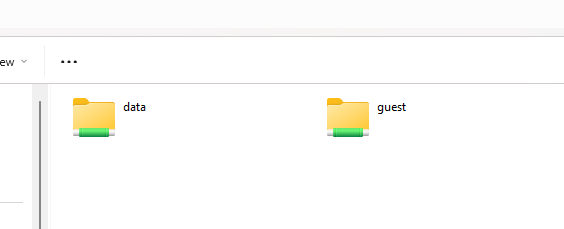
-
I tried to build a image from the current main branch (kernel: 6.18.20) and I found the problem is the same. I changed KERNELBRANCH to "tag:v6.18.18" from "branch:linux-6.18.y" and rebuild. It can boot to desktop as expected. It seems some change in the 6.18.19 kernel causes the problem
-
What happened? I used image https://github.com/armbian/community/releases/download/26.2.0-trunk.606/Armbian_community_26.2.0-trunk.606_Ayn-odin2_noble_current_6.18.19_gnome_desktop.img.xz and I found the device cannot boot into desktop. It stuck in the first boot wizard after message "Please use this account for your daily work from now on." How to reproduce? Download image from https://github.com/armbian/community/releases/download/26.2.0-trunk.606/Armbian_community_26.2.0-trunk.606_Ayn-odin2_noble_current_6.18.19_gnome_desktop.img.xz Flash it to TF card using Armbian Imager Insert the TF card to Odin2 device and power on Wait for it to boot to desktop Observation: It stuck in the first boot wizard after message "Please use this account for your daily work from now on."
-
Thanks I got it.
-
Found an error in the "use proprietary GPU driver for Spacemit K1" script. Because I cannot edit here is the corrected install script. spacemit-gpu-addon.sh
-

Getting a SATA hard drive to mount at boot and sharing whole drive by SMB
bedna replied to John Felstead's topic in Beginners
Samba has one gazillion options, you can read about all of them here: https://www.samba.org/samba/docs/current/man-html/smb.conf.5.html You can read the wiki with examples here: https://wiki.samba.org/index.php/Setting_up_Samba_as_a_Standalone_Server I would NOT use a samba server without a password. -
I built an Ubuntu current image, as of commit f15f594d0bd4ad1e5d0fa412f1d25120e76e4f9a (Armbian-unofficial_26.05.0-trunk_Bigtreetech-cb1_noble_current_6.18.20.img) and started my newly arrived Pad 7 from it. Things that work out of the box: display, touchscreen, wifi, USB. Not working: LAN is not visible at all (only two wlan interfaces). Also, no audio device. According to schematics, audio is taken from HDMI output, so it should be supported by standard HDMI drivers. Where do I enable it in kernel config? https://github.com/bigtreetech/Pad7/tree/master/Hardware your hints will be appreciated. smartkbd@bigtreetech-cb1:~$ wpctl status PipeWire 'pipewire-0' [1.0.5, smartkbd@bigtreetech-cb1, cookie:3329793852] └─ Clients: 32. pipewire [1.0.5, smartkbd@bigtreetech-cb1, pid:1127] 34. WirePlumber [1.0.5, smartkbd@bigtreetech-cb1, pid:1126] 35. WirePlumber [export] [1.0.5, smartkbd@bigtreetech-cb1, pid:1126] 43. wpctl [1.0.5, smartkbd@bigtreetech-cb1, pid:2162] Audio ├─ Devices: │ ├─ Sinks: │ * 33. Dummy Output [vol: 1.00] │ ├─ Sink endpoints: │ ├─ Sources: │ ├─ Source endpoints: │ └─ Streams: Video ├─ Devices: │ ├─ Sinks: │ ├─ Sink endpoints: │ ├─ Sources: │ ├─ Source endpoints: │ └─ Streams: Settings └─ Default Configured Node Names:
-
I have 3 Aceline AG-216 consoles. Help me find the right image for her. QHZIW_H313_A3_2LP4. V2.0 20240603 EA6521QF 2+16G
-
Example for adding a new board with already existing board family: https://github.com/armbian/build/pull/9456/changes
-
Maybe. Trunk are untested auto-builds and support for this board is from the community. Its functionality is unknown to the Armbian team. Get serial console logs. This makes investigation way easier.
-

How to receive MIDI messages to a cli app
samlevy0515 replied to Vivichrist's topic in Software, Applications, Userspace
Try running a2jmidid with pw-jack a2jmidid first — that bridges ALSA MIDI to JACK MIDI, and then use pw-link or qpwgraph to connect your app's MIDI input to the resulting Midi-Bridge ports -
I was able to run Steam games with GPU accelerated ofc. But since my Opi5 only has 8Gb, I mainly run non-Steam games. I can see your SBC has 32Gb, so you are good. I assume your game is 64-bit DX11. Change the Steam Play compatible layer to "GE-proton". Download Dxvk-stripped here: https://github.com/khanh-it/dxvk/releases/tag/releases Copy x64/d3d11.dll, x64/dxgi.dll to the <<game>>.exe folder. Then run the game with a command like so:
-
Hi, I have started to work on a Nanopi Neo3 Plus image (rk3528-based, similar to Nanopi Zero2), announced early March 2026. Created a new .csc file, used the Nanopi Zero2 as a template. Built it with the vendor version. Built it with the vendor kernel., but added the "dt" directory with the rk3528-nanopi-rev02.dts to be "automatically" added to the dts directory and Makefile. The base console version seems to work ok when I generate a bookworm image. As I currently only need u-boot, kernel and dtb's to build my own OS (Volumio, volumio.org), it works for me. Of course, I would like to contribute my work (and support it?), but how do I proceed? I used Armbian's kernel and u-boot build a lot, but not done this before.
- Yesterday
-
Hi guys, I've been trying to run this with and without Gemini for a while and couldn't figure yet how to solve the freezing problem i'm facing with this board. The multitool runs stable on this box. It's an "In X plus" by label, an rk3228a inside, a Samsung KLM8G1WEMB-B031 emmc and 4 Samsung K4B2G0446C memory chips for 1GB RAM. Heres the full log: https://pastebin.com/vkZQKgpu Also the armbianEnv.txt producing it: verbosity=8 extraargs=coherent_pool=2M console=ttyS2,115200n8 console=tty1 debug earlycon=uart8250,mmio32,0x11030000 loglevel=8 bootlogo=false overlay_prefix=rk322x fdtfile=rk322x-box.dtb rootdev=UUID=0c7f3d5e-34b3-4fb4-9894-b4b25702a6a6 rootfstype=ext4 usbstoragequirks=0x2537:0x1066:u,0x2537:0x1068:u I've tried many of the overlays including cpu stability and all the modes for emmc (even disabling it by loading the nand dtbo). Other than that, i've tried increasing pwm voltages and locking cpu and ddr3 speeds, disabling the gpu and everything on its path. Tried also on trixie and its the same thing. If i tune down the verbosity, i can get to a login shell. But it freezes and blanks screen right after with an ilegible string of characters on the tty. Does anyone have a clue what i should try next? I'm guessing it could be the lower kernel version on the multitool that makes it run stable, but i couldnt find any image running it that i could try. The educabox one also freezes. Those images i tested and messed with for long were all build using the armbian builder, with BOARD=rk322x-box. The freezing happens either booting from the sd or flashed to emmc. The weirdest thing is, when i flash one of those built images to emmc, the multitool starts to freeze when booting from sd. Couldn't figure this out either but it stops freezing when i erase the emmc. I'd appreciate any help i could get.
-
Hey there, Title: Need compatible firmware / loader for XR8223518K-V1.0 (RK3518) TV box Message: Hi, I’m trying to recover a TV box with this exact mainboard: Board code: XR8223518K-V1.0 SoC: Rockchip RK3518 Symptoms: device only shows blue LED no HDMI output device can still enter MASKROM / Rockusb mode What I already tested: RKDevTool detects “Found One MASKROM Device” using my current MiniLoaderAll.bin + ExportImage.img fails with: “Download boot fail. Please check DDR.” So I believe I need: the exact stock firmware for this board or a compatible RK3518 MiniLoaderAll.bin / loader for this exact board / DDR configuration If anyone has firmware, loader, dump, or files for XR8223518K-V1.0, I would really appreciate it. Thanks.
-
@boggy have you tried another SD card? You have a lot of mmc errors. which miniarch image booted for you? Maybe we can use the mmc settings from that image.
-
I opened PR #9590 with the really minimal change that's needed to get my desired behavior back.
-
@Nick Acutecom.log log2.txt Here's how it looks right now, booting from an SD card on which I flashed the mainline U-Boot to boot the image.
-
I'm still working on getting the kernel compiled, but in the meantime I may have found where the option disappeared, back when 6.18 was still edge. https://github.com/armbian/build/commit/2a38243de9ff01e079b6ec0c930c00f892e163aa#diff-003c7426ff865cb4e5d2d17e324129fe9de266da1f83a11e290670929e55036dR10-L675
-
OK I think I have learned something. My fstab entry doesn't contain an entry like x-gvfs-show which i believe makes the disk appear in the UI (desktop icon and in Thunar?? I found this by comparing Gnome Disks settings for the SATA drive, which according to disks is mounted at mnt/data. Good. So next task is to install and configure SMB to share the root drive on the network ideally without the necessity of entering a password. So path should be /mnt/data?? and do I require Valid Users entry? Finally do I need smbpasswd.. Note users accessing will be from Windows 11 pcs and mobile phones (iOS) path = /mnt/data available = yes valid users = kealy read only = no browsable = yes public = yes writable = yes
-
Hello I flashed Armbian 26.2.0-trunk.606 on a SD Card. But my Orange pi 4a does not boot: only red led. It boots well with the Orange image Orangepi4a_1.0.4_ubuntu_jammy_desktop_gnome_linux5.15.147.7 Any idea ? is there something to update ? Thanks
-
Hello @lewa_j! Thanks for the explanation. As long as https://docs.mesa3d.org/drivers/powervr.html lists BXE-2-32 as unsupported we stick to the blobs. Of course, you are free to check this for youself, see compiling "getting started" above. HTH // Sven-Ola
-
Sorry for what should be help on a basic operation but I'm having real problems trying to share a SATA attached hard drive via SMB. My aim is to try and share the root of the whole 1Tb drive but I have two problems. 1) Getting the drive to mount at startup. (I thought internal and SATA drives did by default but this seems not to be the case 2) Creating a share with guest permissions. I understand that I should edit the fstb file using the UUID of the disk. I obtained the UUID but there are two listed. One for the whole disk and one for the partition. (Note The hard drive was formatted exFat in windows before being attached as whatever i did i couldn't write to it, something to do with having root permissions. I even tried taking ownership but without success) here is the blkid command output /dev/sda1: LABEL="data" UUID="74E3-01BF" BLOCK_SIZE="512" TYPE="exfat" PARTUUID="6c2b2d10-01" /dev/mmcblk0p1: LABEL="armbi_root" UUID="69fa8a60-c365-456c-8d0a-7889eb4a3713" BLOCK_SIZE="4096" TYPE="ext4" PARTUUID="c0cf2841-01" /dev/zram1: LABEL="log2ram" UUID="7269c460-6283-4374-bcba-be885c806c25" BLOCK_SIZE="4096" TYPE="ext4" /dev/zram0: UUID="7a1deaea-e26c-45f2-9a73-ac43c6bf301e" TYPE="swap" here is my fstb file UUID=69fa8a60-c365-456c-8d0a-7889eb4a3713 / ext4 defaults,,commit=120,errors=remount-ro 0 1 tmpfs /tmp tmpfs defaults,nosuid 0 0 UUID=74E3-01BF /mnt/data exfat defaults 0 2 I used the disk UUID rather than the partition however the disk is no longer visible when armbian starts. previously it was visible but unmounted. there is an entry in the /mnt/ folder called data. I was also unsure if I should enter the filetype exfat in the fstb entry as all other example show ext4 before defaults. Please can someone put me right and suggest the correct entry in the smb.conf file. I believe it should be something like this :- path = /media/kealy/data available = yes valid users = kealy read only = no browsable = yes public = yes writable = yes However as there is an entry in the /mnt/ folder should path be /mnt/kealy/data instead? Finally where should the user password go in the smb.conf or is public= yes is this necessary. The device will only be used in a family household to upload their photos from their phones.