Skip to content
View in the app

A better way to browse. Learn more.

Armbian Community Forums

A full-screen app on your home screen with push notifications, badges and more.

To install this app on iOS and iPadOS
  1. Tap the Share icon in Safari
  2. Scroll the menu and tap Add to Home Screen.
  3. Tap Add in the top-right corner.
To install this app on Android
  1. Tap the 3-dot menu (⋮) in the top-right corner of the browser.
  2. Tap Add to Home screen or Install app.
  3. Confirm by tapping Install.

c0rnelius

Members
  • Joined

Everything posted by c0rnelius

  1. They were custom built. I suspect the issue is: https://github.com/armbian/build/blob/main/patch/u-boot/v2022.10/meson64-boot-usb-nvme-scsi-first.patch
  2. @dnwhoop02 sudo dd if=u-boot.bin of=/dev/mmcblk1 bs=512 seek=1
  3. Find the /dev/node `lsblk` Flashing options: eMMC: sudo dd if=u-boot.bin of=/dev/mmcblkX bs=512 seek=1 SDCARD: sudo dd if=u-boot.bin.sd.bin of=/dev/mmcblkX conv=fsync bs=1 count=442 sudo dd if=u-boot.bin.sd.bin of=/dev/mmcblkX conv=fsync bs=512 skip=1 seek=1 u-boot.bin u-boot.bin.sd.bin
  4. https://github.com/armbian/build/pull/7694 patrick@rpi4b:~$ dmesg | grep brcmfmac [ 3.443168] brcmfmac: F1 signature read @0x18000000=0x15264345 [ 3.444363] brcmfmac: brcmf_fw_alloc_request: using brcm/brcmfmac43455-sdio for chip BCM4345/6 [ 3.444650] usbcore: registered new interface driver brcmfmac [ 3.673499] brcmfmac: brcmf_c_process_txcap_blob: no txcap_blob available (err=-2) [ 3.673793] brcmfmac: brcmf_c_preinit_dcmds: Firmware: BCM4345/6 wl0: Apr 15 2021 03:03:20 version 7.45.234 (4ca95bb CY) FWID 01-996384e2 [ 8.815477] brcmfmac: brcmf_cfg80211_set_power_mgmt: power save disabled
  5. I just maintain a few boards here and help out where I can.
  6. The kernel checks a few places for firmware blobs. https://docs.kernel.org/driver-api/firmware/fw_search_path.html You can also set a firmware path in cmdline. This usually isn't needed though. firmware_class.path=/lib/firmware/updates/brcm The kernel checks /lib/firmware/updates before /lib/firmware, allowing us to be able to test new firmware without removing the old.
  7. Does this resolve it? sudo git clone --depth=1 https://github.com/pyavitz/firmware.git /lib/firmware/updates/brcm If so we should be able to resolve this for future builds.
  8. Try adding auto to it. UUID=<output-of-bklid-for-sda1> /media/USB01 ext4 defaults,noatime,auto 0 1
  9. Yes. It's already ticked on in the defconfig.
  10. Should be available in future kernel builds. https://github.com/armbian/build/commit/db3fdc74117392d3d0c0ec02811c8939769fe6da
  11. Both Bluetooth and i2c2 use GPIOX_17 and GPIOX_18, so we need to disable Bluetooth for those HEADER PINS to function. Basically, if you need i2c2 than you are going to lose Bluetooth support.
  12. @jak Try this one. /dts-v1/; /plugin/; / { fragment@0 { target = <&i2c2>; __overlay__ { status = "okay"; }; }; fragment@1 { target = <&uart_A>; __overlay__ { status = "disabled"; }; }; }; Result in my case: bananapi: ~ $ sudo i2cdetect -y 2 0 1 2 3 4 5 6 7 8 9 a b c d e f 00: -- -- -- -- -- -- -- -- 10: -- -- -- -- -- -- -- -- -- -- -- -- -- -- -- -- 20: -- -- -- -- -- -- -- -- -- -- -- -- -- -- -- -- 30: -- -- -- -- -- -- -- -- -- -- -- -- 3c -- -- -- 40: -- -- -- -- -- -- -- -- -- -- -- -- -- -- -- -- 50: -- -- -- -- -- -- -- -- -- -- -- -- -- -- -- -- 60: -- -- -- -- -- -- -- -- -- -- -- -- -- -- -- -- 70: -- -- -- -- -- -- -- --
  13. @jak Something is a-mis. I'll need to investigate and get back to you. The working IMG you are referring to is using an old BSP kernel, which is not used here.
  14. Create an overlay and enable it. /dts-v1/; /plugin/; / { fragment@0 { target = <&i2c2>; __overlay__ { status = "okay"; }; }; };
  15. I have this issue with the Le Potato from time to time. I use a service and script to run `ethtool -r eth0`.
  16. The current github drivers for this dongle are a mess. Hopefully by the next LTS this will have been merged; https://lore.kernel.org/linux-wireless/435af284-0794-48e0-81a5-5a88b3c454bf@gmail.com/T/#t For the time being use: https://github.com/lwfinger/rtw88 If needed and isn't installed already the latest firmware can be found here; https://github.com/armbian/firmware/tree/master/rtw88
  17. Read the post and check the PR link and or follow the fellas post below. The IMGs need to be updated, so currently that's the only remedy as far as I know.
  18. Normally out of the gate Samba doesn't just work. You need to setup up the /etc/samba/smb.conf file and add a user to it. sudo smbpasswd -a yourusername Here is an example conf file smb.conf EDIT: That smb.conf file I pulled off a NAS I have running on a bullseye install, on my newer ones I set both client and server to NT1. client min protocol = NT1 server min protocol = NT1 I can't recall the reasons why now, but pretty sure it had something to do with functionality. You can google the client and server options and set it to whatever best suits ur needs.
  19. Scroll to the bottom of the page and try a rolling release IMG. https://www.armbian.com/bananapi-m4-zero/ We are in the middle of sorting out the BT, but WiFi should work VIA overlay. My notes are here; https://github.com/armbian/build/pull/7332
  20. @Eloy Bote Falcon Try this pre-compiled binary. I'm gonna need to re-write some of that patch to work with armbian. sun50i-h618-bananapi-m4-zero-v2.dtb
  21. https://github.com/armbian/build/pull/7193
  22. I would think it just being there is good enough.
  23. I'm told the bluetooth doesn't work, which is why I haven't submitted it. The patch was also done quick and dirty and I'm sure needs some clean up. 0001-arch-arm64-dts-allwinner-sun50i-h618-bananapi-m4-zero-v2.patch
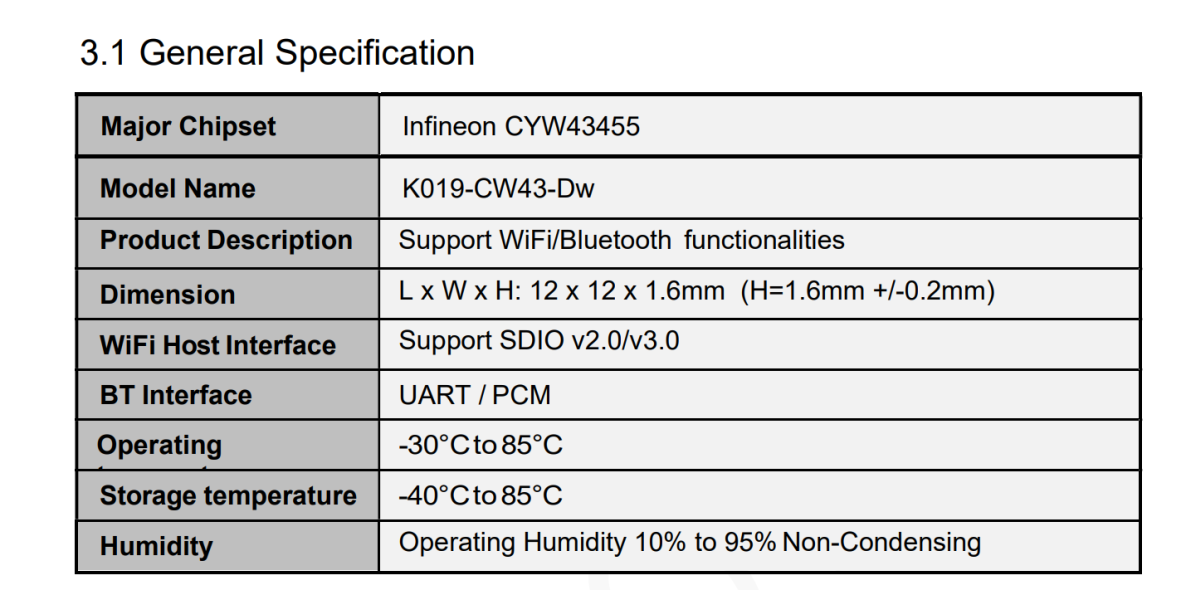
  24. I'm honestly not sure about the specs. I only know they have a new REV out, as someone has already approached me about WiFi not working. One way to tell would be looking at the WiFi module on the unit. If it isn't REALTEK, than its the new REV. Attached was the chipset on their unit.

Account

Navigation

Search

Search

Configure browser push notifications

Chrome (Android)
  1. Tap the lock icon next to the address bar.
  2. Tap Permissions → Notifications.
  3. Adjust your preference.
Chrome (Desktop)
  1. Click the padlock icon in the address bar.
  2. Select Site settings.
  3. Find Notifications and adjust your preference.