Active threads
Showing topics posted in for the last 365 days.
- Past hour
-
 How to get this working on your Raspberry Pi (5) Hello all. Thanks again, @MMGen, for offering this fantastic tutorial. As mentioned before, it was the foundation for me to encrypt my Raspi 5, although the tutorial wasn't intended for that. I hat to make the some adjustments to get it working. But first some reasoning. What's the difference? The Armbian image for Raspi comes with two partitions: FAT32 for booting ext4 as a root Out of the box it already resembles the result that we try to achieve. I assume that this is due to the different booting process of a Raspi compared to other sige-board computers. Download the desired image from: https://www.armbian.com/rpi4b/ https://mirrors.dotsrc.org/armbian-dl/rpi4b/archive/ → more images (I only tested my approach with the minimal Trixie image, kernel version 6.12.41 to .58, and would be delighted to know if somebody also got it working with other derrivates.) Changes to the original tutorial: Basically I followed the tutorial except for the steps below where I had to make some adjustments. Step 6: As the type of the boot partition needs to be FAT32 instead of ext4, in fdisk change the partition type (hit t) to FAT32 (0b or just b in the partition list l). I also adjusted the size of this partition to +1G, just in case, but that shouldn't make a difference. Here's final partition table: Device Boot Start End Sectors Size Id Type /dev/<your-drive>p1 8192 2105343 2097152 1G b W95 FAT32 /dev/<your-drive>p2 2105344 3907029167 3904923824 1.8T 83 Linux I'm using an NVME drive instead of a SD card. I guess that won't make a difference. I always repaced sda with nvme0n1 when I followed the tutorial. Step 7: mkfs -t vfat /dev/<your-drive>p1 # NOT: mkfs.ext4 /dev/<your-drive>p1 # e2label /dev/sda1 CRYPTO_BOOT won't work on FAT32 partitions Step 8: Because there is no label on the FAT32 partition, just link it manually: BOOT_PART=/dev/<your-device>p1 In my image, the resolv.conf was already present and symlinked to /run/systemd/resolve/stub-resolv.conf. I had to rename it to etc/resolv.conf.old and only then did: cat /etc/resolv.conf > etc/resolv.conf Step 9: Now it gets a bit hairy. As already explained, the Armbian Raspi image works a bit differently. It holds the following partitions: P1: is the boot partition. During (or after?) the boot process it will be mounted to P2:/boot/firmware. P2 contains a cmdline.txt (content covered below) which is the config file to make the adjustments from Step 9.1 for the boot partition. P2: is our root partition. P1:/boot does contain an armbianEnv.txt but that is not the config file used during the initial boot process for the unlocking system . Step 9.1: At this point in the tutorial P2 is mounted to root/boot, so you can nano boot/cmdline.txt and change its content to: console=serial0,115200 console=tty1 loglevel=1 root=/dev/mapper/<custom-name-or-rootfs> rootdev=/dev/mapper/<custom-name-or-rootfs> rootfstype=ext4 fsck.repair=yes rootwait logo.nologo cgroup_enable=cpuset cgroup_memory=1 cgroup_enable=memory I was hesitant to make further changes besides the root and rootdev entries or break the line but probably that's also feasible. Step 9.2: Skipped. Step 9.7: As the boot partition is FAT32, etc/fstab has to know about it too. Also notice that commit=600 results in a failure to mount it to /boot/firmware after unlocking and rebooting (took me days before I could plug a display to my Raspi, read the boot log and figure out that line as the source of failure). Therefore I deleted the commit declaration. /dev/mapper/<custom-name-or-rootfs> / ext4 defaults,noatime,nodiratime,commit=600,errors=remount-ro 0 1 UUID=<UUID> /boot/firmware vfat defaults,noatime,nodiratime,errors=remount-ro 0 2 tmpfs /tmp tmpfs defaults,nosuid 0 0 Step 10: Add systemd to the install list in the chroot (thanks to @The Tall Man for mentioning). apt --yes install systemd cryptsetup cryptsetup-initramfs dropbear-initramfs In principle that should be it and i followed the rest of the tutorial. But I always had to make adjustments, after which I had to recreat the initrd.img. update-initramfs is always suspiciously fast so I just used the approach from this tutorial: KERNEL_VERSION=ls /lib/modules/ echo "CONFIG_RD_ZSTD=y" > /boot/config-$KERNEL_VERSION # to use the right decompression method mkinitramfs -o /boot/initrd.img $KERNEL_VERSION rm /boot/config-$KERNEL_VERSION # remove the config If you want to keep the original initrd.img as a backup you can just copy it before running the above commands but of course it won't be work with our encrypted boot. You can give the .img output file a different name. Don't forget to change the line initramfs initrd.img followkernel in boot/config.txt accordingly. Don't forget ssh-keygen -A. That's it Please let me know how if it worked for your Raspi. Good luck. @MMGen: If you find this sub-tutorial helpful enough, please consider to link it in your original post or feel free to incorporate it. It took me quite some days to figure all the necessary changes out and borow from other sources. Would be nice to spare others and this thread is a top rank in search engines. As you can see I used a name other than rootfs as my device name – the ability to change that could be a nice feature for the next version of your script Cheers!
 -
 http://blog.armbian.com/content/images/2026/01/T6-Plus-01.pngThe NanoPC T6 Plus, powered by the performance-optimized Armbian OS, is your ticket to a truly professional, high-speed edge computing experience. This industrial-grade device is built around the flagship Octa-core Rockchip RK3588 SoC and now features a massive upgrade to LPDDR5 RAM (up to 32GB), giving it the muscle to handle heavy virtualization, 8K media, and AI workloads effortlessly. Its core hardware is ideal for power users and enterprise integration. The dual 2.5GbE Ethernet ports ensure you can maximize the speed of high-bandwidth wired connections, while multiple M.2 slots (M-Key for NVMe and E-Key for Wi-Fi/BT) allow for blazing-fast storage arrays and wireless expansion. More importantly, the switch to LPDDR5 memory significantly boosts bandwidth, unleashing the full potential of the 8-core CPU and NPU. With Armbian, managing this SBC is simple and utilizes the device's full potential. To configure your system or install complex software stacks, just launch the terminal and run: sudo armbian-config. Navigate to Software and select from pre-packaged installers like Docker, Home Assistant or JellyFin. This single step leverages the RK3588’s processing power for seamless containerization and service hosting, combating supply chain bottlenecks with older LPDDR4X boards. Finally, the PCIe 3.0 x4 interface is perfect for attaching high-speed NVMe SSDs, instantly turning the T6 Plus into a high-performance NAS or media server capable of real-time transcoding. This is just one example of usage. It can serve as a compact 8K workstation, an advanced NVR surveillance hub, a powerful emulation gaming box, or a local LLM host utilizing the 6 TOPS NPU and RKLLM. Thanks to its rich interface options—including HDMI 2.1 output and 2.0 HDMI input—the T6 Plus excels in scenarios where multimedia performance and raw compute power are essential. From segmented home labs to industrial control systems. Combined with the efficiency of the new memory architecture and solid software support, it offers an unrivaled balance between performance, expandability, and reliability. Hardware specifications Feature Specification SoC Rockchip RK3588 CPU Octa-core ARM (4× Cortex-A76 @ 2.4GHz + 4× Cortex-A55 @ 1.8GHz) GPU ARM Mali-G610 MP4 Compatible with OpenGL ES 1.1/2.0/3.2, OpenCL 2.2, Vulkan 1.2 NPU 6 TOPS (INT8) Supports INT4, INT8, INT16, FP16 VPU 8K@60fps H.265 / VP9 / AVS2 decoder 8K@30fps H.264 decoder 8K@30fps encoder (H.265 / H.264) Memory 16 GB / 32 GB LPDDR5 (Upgraded from LPDDR4X) Storage 32GB / 64GB / 256GB eMMC 5.1 1 × M.2 M-Key (PCIe 3.0 x4) for NVMe SSD microSD (UHS-I) Ethernet 2 × 2.5 GbE ports (RTL8125BG) Wireless Optional via M.2 E-Key (PCIe 2.1 x1 + USB 2.0) Video Output 2 × HDMI 2.1 (Up to 8K@60fps) 1 × USB-C (DisplayPort 1.4) Video Input 1 × HDMI 2.0 Input (Up to 4K@60fps) USB 1 × USB 3.0 Type-A 1 × USB-C (Data/DP) Misc USB 2.0 headers Expansion 40-pin GPIO header Mini-PCIe connector Power Input DC 12V/2A (5.5 x 2.1mm jack) PCB 8-layer PCB, 110 × 80 mm Operating Temp 0 °C to 70 °C View the full article
 - Today
-
Probably you have to read again the installation instructions in the first page, in particular you have to use the multitool
-
Hi, you need to provide a boot log, maybe something will be noticed. If you boot without wifi and can access a previous boot log when the machine is freezing, put it here.
-
did you even research what all these switches do? NEWPKG does not even exist, SKIP_EXTERNAL_TOOLCHAINS was removed recently and KERNELBRANCH is ususally a specific tag and EXPERT....well...are you?
-

Gaming experience with Orange Pi 5 (RK3588) on Armbian
KhanhDTP replied to KhanhDTP's topic in Orange Pi 5
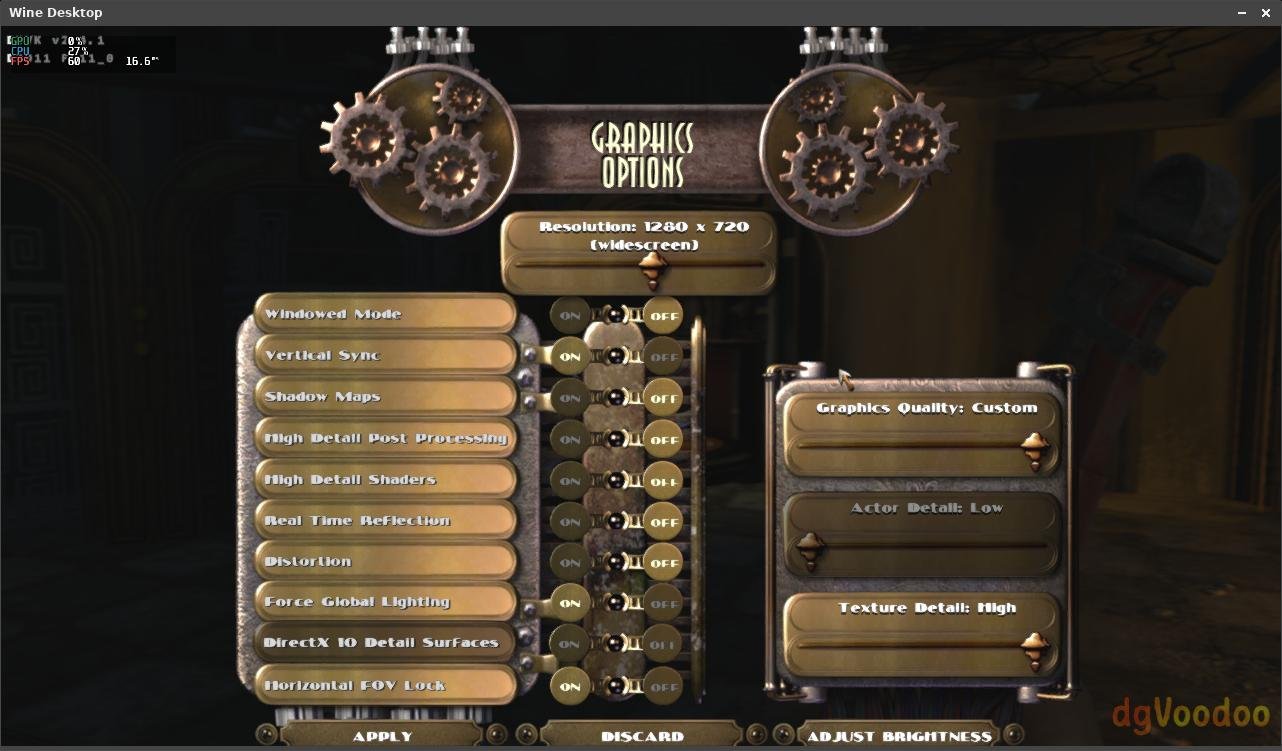
Armbian 25.11.2 Noble XFCE (BSP Kernel: 6.1.115) + PanVk - mesa 26.0 (https://launchpad.net/~ernstp/+archive/ubuntu/mesaaco) + Box64 arm64 v0.4.1 2eb2fd9cd (https://ryanfortner.github.io/box64-debs/) + wine-11.0-staging-tkg-ntsync-amd64-wow64 (https://github.com/Kron4ek/Wine-Builds/releases/tag/11.0) + dgVoodoo2 (https://github.com/dege-diosg/dgVoodoo2/releases) + DXVK-stripped v2.4.1 40~60fps@720p (low settings + high texture setting) box64 environment variables: Bioshock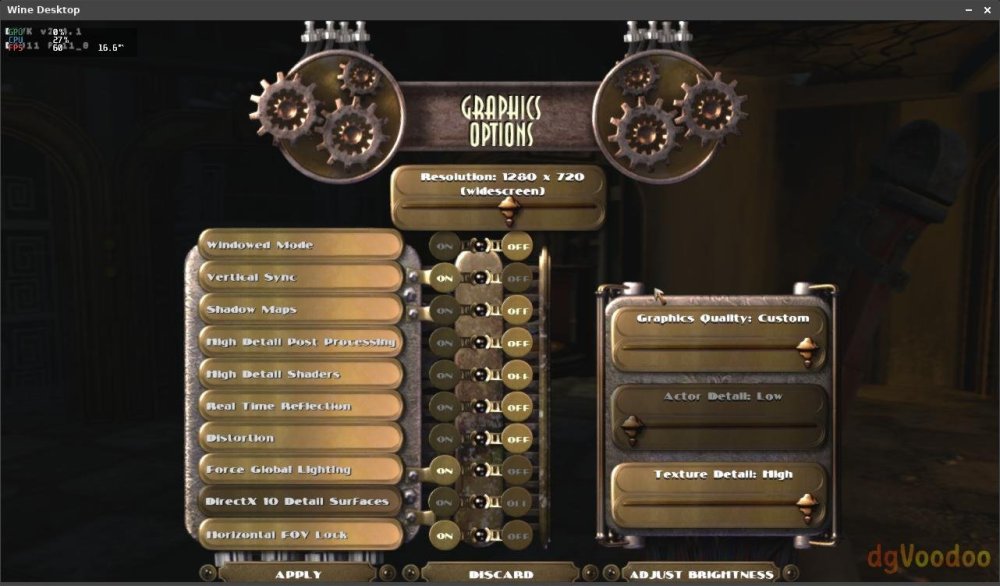
.thumb.jpg.932bdba8036d404468388a90ca15883b.jpg)
-
Hey there! @arizonan so.. if your H96 is stock you wont need any of my instructions.. My box got bricked somehow and this was pretty much the "troubleshoot" to get it working again. What you need to do is follow this instructions: HERE
-
 "While it didn't give an solution, " Well actually it gave many solutions, none of which worked! I've learned from this experience never follow an AI bot blindly, without second-guessing it's suggestions; it will lead you down the Garden path till Christmas. Many of its instructions in other aspects of armbian worked first time like a charm whereas this did not. I'll take a break for a week or two and think about it. Thanks for your suggestions......
 -

Efforts to develop firmware for X96 X6 RK3566 (8G/64G)
Dũng Trần replied to loi xin's topic in Rockchip CPU Boxes
Do you still have the download link for the ISO file Station M2 Armbian_community_24.11.0-trunk.167_Station-m2_bookworm_current_6.6.52_minimal.img.xz? -
You will need to provide a lot more information. What image are you trying to use? What CPU does your box have? There are different generations of this box and from what I can see they all have different cpus.
- Yesterday
-
 Ubuntu I see. That I do not have running, so cannot speak from experience.
 -
Thanks for the feedback. This is welcome 👾 I'm currently fiddling with Wifi for the 6.18 kernel. No good karma: the adapted bcmdhd sdio wifi from the Spacemit kernel 6.6 was removed from 6.18. So I'm using the bcmdhd extension instead, as it's done with OrangePi 5, based on the github/armbian/bcmdhd-dkms repo. That one has ALLWINNER changes under the #ifdef CUSTOMER_HW_RK (probably Rockchip origin). I need to re-add SPACEMIT changes. Also, I need to revert a Wake-on-WLAN change submitted by Spacemit to RFKILL in order to get the necessary Interrupt init called. Bonus: OPi5-edge also uses that extension driver but does not compile b/c a PR for 6.17 on bcmdhd-dkms from October was ignored. Will need time 🤪 LG // Sven-Ola
-

T9 TvBox Sunwell - Pcb Label T9-RK3328-8x4-V1.8
Константин Кривбасс replied to GmP's topic in TV Boxes running Armbian
Hello! I see you installed the 3318 image on the T9 and everything works fine. Congratulations! I'm not a big Linux expert, but I'd like to make a server out of it. I have the same console, but I'm afraid I can't handle it. I couldn't even find the best image for it...could you share your image for it? -
 I am thinking about getting a Nanopi R3S, which could be a better option, for it has a dedicated designed case for it. The CPU on it is the same one, so computation wise should be feasible.
 -

Edit ArmbianEnv.txt when machine is unable to boot?
Myriade replied to Myriade's topic in Rockchip CPU Boxes
Found the other partition! Quite surprised that it didn't show up in KDE, but that's on me for blindly trusting a GUI. Thank you -
Hello Dear, After flashing *Armsom-cm5-rpi-cm4-io_*, there is one critical problem. onboard USB hub always connects and disconnects 2 times when booting. dmesg outputs: [ 6.190239] hub 1-1:1.0: USB hub found … [ 7.868081] rk-pcie 2a200000.pcie: PCIe Link Fail, LTSSM is 0x3, hw_retries=0 [ 7.868642] usb 1-1: USB disconnect, device number 2 … [ 9.326443] hub 1-1:1.0: USB hub found … [ 11.213062] rk-pcie 2a200000.pcie: PCIe Link Fail, LTSSM is 0x3, hw_retries=1 [ 11.213297] usb 1-1: USB disconnect, device number 4 I have tried with many variations, but the onboard hub is always disconnected. server/desktop community release/ self build several tags from 25.5 to 26.2 CONFIG_USB_ONBOARD_HUB O/X rpi cm4 io board/ Ochin board However, Armsom's official image has no problem with the onboard usb hub. CM4-nano-B has no onboard hub, and has no problem with external hub. So, it seems to be a SW problem. In addition (for information), I tried custom-build without pcie because hub disconnection happens near pcie. Kernel menuconfig disables Rockchip PCIe host cont/ Rockchip DesignWare PCIe cont/ Broadcom Wireless Device Drv. Device Drivers ---> [*] PCI support ---> PCI controller drivers ---> < > Rockchip PCIe host controller DesignWare PCI Core Support ---> < > Rockchip DesignWare PCIe controller ... [*] Network device support ---> [*] Wireless LAN ---> <*> Rockchip Wireless LAN support ---> [ ] Broadcom Wireless Device Driver Support ---> Then, both pcie and onboard-usb-hub disappear in dmesg even though any usb option is not changed. Please review this problem. Thanks.
-
 Dear SteeMan, thank you for your answer. I checked Android info, and it shows 8 GB / 128 GB, Android 15, so the advertisement was not real. I investigate it forther.
 -
I have a question about booting from sd card. While with empty emmc (erase with rkdeveloptool), the board falls back to maskrom mode even the sd card (with working os) is inserted. It can boot armbian into sd card if I flash miniloader and u-boot in to emmc. I wonder how can we get it to boot fully from sd card.
-
Unfortunately i do not have this board to compile/test on
- Last week
-
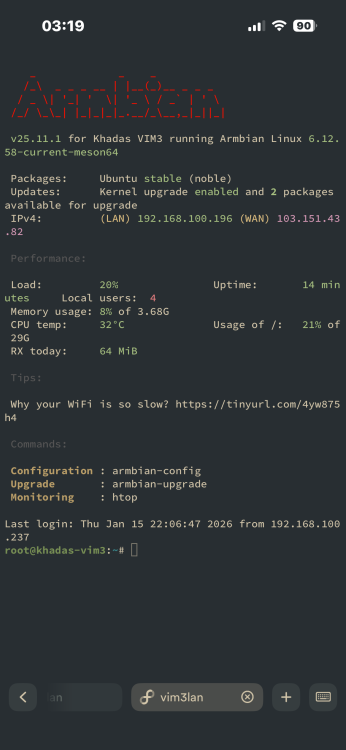
by the way i can ssh into armbian while it’s stuck on a black screen so i can provide any logs you want
-
Appreciate the quick replies! Turns out im just an idiot, and completely forgot to freeze the kernel. have a great evening!
-
ok
-
You use a Desktop/Xfce installation, and it is for a low-power ARM64 computer. So I would not be surprised if in modern Xfce, the Power Management default to suspends after 30 minutes or so. Last time I used Xfce was when Debian Buster, also then in then I remember in the GUI there should be some system setting where you can configure power settings. So there you can make sure that it never enters suspend state. I do not know how to configure that from command line, but that should also be possible, maybe search internet. You can also look into the journal and see what happened, maybe something is wrong. 7 Watts is way too high for suspend state at least, but maybe things connected on USB still draw power and is it only the CPU that is halted. Other option is not to use a Desktop image/installation, but a CLI for server/IoT variant. Those images should have suspend disabled.
-
 This might help you: https://github.com/nyecov/roobi-config-anyOS It details how install basically any OS via Roobi
 -
Just confirmed. Running bookworm on the same RockPi-S, it "just works". Any suggestions on what happened in Trixie and if there's a fix?



.jpg.5ca68da5a1817fe0e064ee70e4f389b8.jpg)